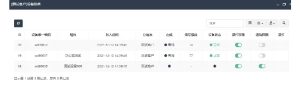
一、System Operation Instructions
1. Username and Password
Please obtain your username and password from the distributor before using the system.
2. How to Use the WeChat Mini Program
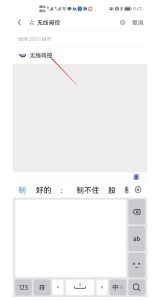
Step 1: Search for the Mini Program
Open WeChat on your mobile device and search for:
Wireless Valve Control
Find the corresponding Mini Program in the search results.
Step 2: Open the Login Interface
Tap Wireless Valve Control to enter the login interface.
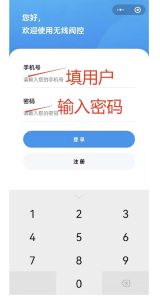
Step 3: Enter Your Login Information
Enter your username and the correct password to log in to the system.
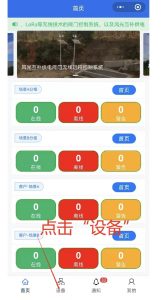
Step 4: Open the Device Page
After logging in, tap Device to enter the device management page.
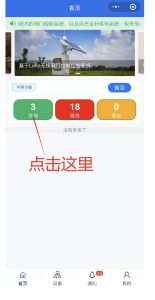
Step 5: View Online Devices
Tap Online to view the devices that are currently online.
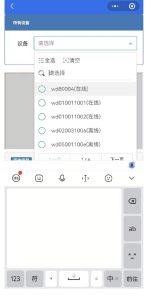
Step 6: Select a Device
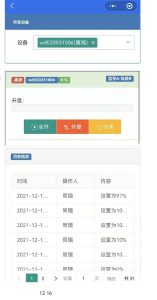
Tap the online device you want to operate.
The device control interface will open. Follow the on-screen instructions to complete the subsequent operations.
二、PC Platform Login
To access the system on a computer, enter your:
- Account
- Password
- Verification code
After entering the required information, log in to the system.

三、Administrator
The administrator system is used to manage all devices and customer information.
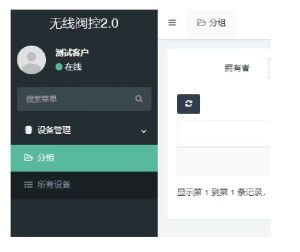
Each customer can have multiple groups, and device information is managed through these groups.
A single device can also be assigned to multiple customers.
For example, if Device A needs to be managed by two customers, Device A can be added to the groups of both customers when their accounts are created.
The administrator can also configure customer permissions through system settings, including options such as:
- Read-only access
- Notification permissions
This allows different customers to be given different levels of access according to management requirements.
四、Customer
The customer interface is primarily used on mobile devices, while the PC version serves as a supplementary management tool.
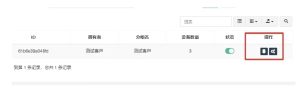
After logging in successfully, customers can view the groups under their account and the corresponding device list.
Within each group, users can perform operations on the devices assigned to that group.